Showing posts with label solutions. Show all posts

Wednesday, 28 August 2013

Afrihost DNS issues - work around until issues are solved 28 August 2013


Afrihost ADSL clients may experience errors with Web Browsing, YouTube access, Sending & Receiving Email and other services due to a DNS error on MTN network.

Here is a solution until the issues are solved

If your router has Afrihosts DNS servers in it or its set on 'Obtain  DNS automatically' ,  Log into your router and change it to Googles DNS


Primary DNS: 8.8.8.8
Secondary DNS: 8.8.4.4

If your router is set on obtain automatically your can use an alternative method but will have to do this on each individual computer.

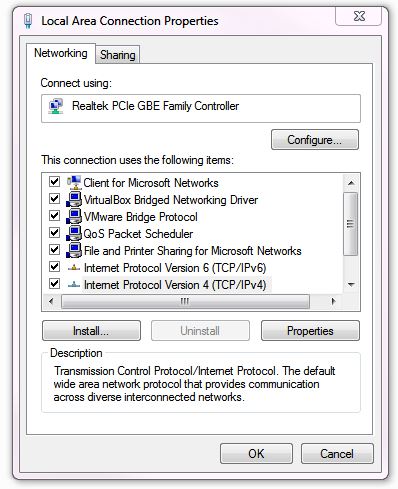
Go to your network adaptor (wireless or LAN  local area connection) settings right click select properties.Select  Internet protocol version 4 (TCP/IP v.4) >>> Click 'Properties'

Then select the radio button  'Use the following DNS server adresses:'  put in Googles Primary  & Secondary DNS settings mentioned above. Click okay and now you should have browsing and email access again


If you have any questions please leave comments.

Tuesday, 27 August 2013

Microsoft Office 2013 - Error opening word and excel files that have been downloaded or sent to you as attachments.


How to fix an error opening word and excel files that have been downloaded or sent to you as attachments in Microsoft Office 2013

 Below: Error message
 image thumb How to remove protected view from Office 2013 when downloading documents from the web

The message that has nothing to do with the actual problem, and the problem is actually a Microsoft feature, as often is:

- Office now has a  "protected-mode" feature, which prevents office apps from doing certain things under certain conditions.
- One of them is to stop excel / word from opening attachments coming from outlook.

Click the Microsoft Office ButtonButton image, and then click Word Options. or Excel  depending on what you having a problem with.
 image thumb2 How to remove protected view from Office 2013 when downloading documents from the web 

Below: Click Trust Center, and then click Trust Center Settings. image thumb3 How to remove protected view from Office 2013 when downloading documents from the web 

Below: Click the "Protected View"  in the left menu and untick all 3  check boxes on the right.
'
image thumb4 How to remove protected view from Office 2013 when downloading documents from the web

Save and voila, suddenly  word / excel can open all your files and has absolutely no problems with your gigs of free memory.
Thanks to the brilliant minds who conceived such an awkward feature with awkward error messages and ultra-deep menu options to clear - and of course no simple help. LOL

Thursday, 1 August 2013

My BlackBerry Freezes and is Terribly Slow

I know this is not PC related, it is however very common question I get from many of my customers, so i thought i would post a little article on it.


Okay lets just start with rebooting the device With the BlackBerry device POWERED ON, remove the battery for a 20 secs , and then reinsert the battery to reboot.

After  using your Blackberry for a while you may experience freezing or lagging/slow response on any BlackBerry, the most important practice you can adopt is to be sure to CLOSE applications when you are finished using them.

If you just hit the red "end call" key to go back to the home screen the application actually stays open and running in the background. If you do this repeatedly don't close the applications properly,  you will have lots of apps open and consequently your memory will get used up pretty quickly.

The lack of memory is the biggest reason your BlackBerry slows to a crawl or locks up.
Get into the habit of actually using the menu key to close the applications this will at least slow down this memory-clogging process. You still may have to do a battery pull or use the "Quickpull" app once in a while when things get slow.

To check what applications are running on your device in the background, press the Menu key,
then choose Switch Applications. You will see the icons of each application there. Select the icon of the application you want to close open it then click the blackberry menu button scroll to the bottom of the menu and select 'Close'

So now, check your applications running in the background. There are commonly four or five applications that will always be running (Messages, Call Logs/Phone, BlackBerry Messenger, Homescreen, and the Browser;

There are other third party applications such as, Whatsapp, BlackBerry Alerts which will also run in the background which you cannot close if you want them to operate). Make certain that the browser is NOT on an active webpage. Close any other applications that do not need to be running (the camera or a game you were playing or Google Maps etc).

Next, Blackberry devices by default create event logs  you  can delete the event logs by doing the following:
 Holding the "ALT" button and pressing "L G L G" one after another, then press the menu button and  scroll down to 'clear log' and select it, then select 'delete'.


Clearing the memory log, we can free up 1-2 meg or so of memory space depending on amount of apps. If you do not want your blackberry to create event logs you  can select 'options' and untick the boxes  or  an even easier option is to press the menu button again and select 'Hide all Types'.

Tuesday, 14 May 2013

Laptop Overheating Remedies


Have you noticed that your laptop has been getting hotter and hotter especially after leaving it on for a few hours.
Laptop's fans are notorious for collecting dirt, dust, and other chemicals in the air. Some of the things suggested in this article should help you cut down on your heat issues and keep your computer breathing better.
Laptop ventilation systems are in weird places, such as underneath the laptop, on the sides, you do not want to block the intake or exhaust areas.
Because of this here are a few tips to keep your laptop's heat down..
  1. Observe where the intake area/s are (this would be the vents where the fan/s are) and the exhaust area the vents where the warm air blows out, make a mental note of it and make sure you never block those areas.
  2. Use a can of air on your vents every few months or so. This will help expel out the dust and prevent dirt from clogging up the inside of your computer. (You can get a can of air from your local hardware store)
  3. Don't leave your laptop on a bed or couch. Because the laptop sinks in to the bed, the ventilation system can't do it's job keeping the laptop cool enough to operate. ( If the ventilation  is blocked chances are you could  'fry' your CPU, however most laptops have a protection feature in the Bios that addresses heat management, this will switch off the laptop when the CPU reaches maximum temperature. Often if this is the case and you try switch the laptop on - it will  almost immediately turn off again until CPU temperature has dropped.)
  4. During high pollen seasons, limit the time you use your laptop outdoors. These particles are nasty and clog up systems faster than anything else.
  5. Avoid smoking near computers. This will cause nicotine build up on your fans and burn them out. And a burnt out fan disables your computers ability to keep it self cool.
  6. Consider investing in a USB powered laptop cooler. I use one of these on my laptop and I've noticed a significant increase in performance when the laptop temperatures are kept cool.
  7. Put your computer into standby when your not using it. The less the computer is on, the less heat it will generate and prevent it from over heating.
Below: Typical laptop cooling system Note: some laptops have two fans a CPU & GPU fan

Below: a typical laptop with  CPU vent and exhaust vents on bottom and side. (this laptop has two exhaust outlets) 


Below: Typical Laptop cooler - helps airflow circulation.

The DurbanGeek website:  http://www.durbangeek.co.za   DurbanGeek Blog: http://durbangeek.blogspot.com